
Introduction
Many websites require uploaded PDF documents to be 2 MB or smaller. This is common for government applications, university admissions, banking services, insurance claims, visa applications, and online job portals.
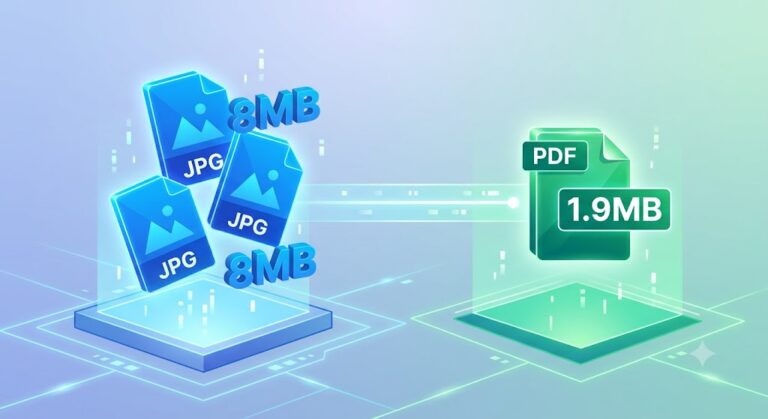
If your PDF exceeds the allowed size, the upload may fail or be rejected. Fortunately, you can reduce a PDF to 2 MB without noticeably affecting its readability by using an efficient PDF compression tool.
In this guide, you’ll learn how to reduce PDF size to 2 MB, why file size matters, practical optimization techniques, and common mistakes to avoid.
How to Reduce PDF Size to 2 MB (Complete Guide)
Table of Contents
- What Does “Reduce PDF Size to 2 MB” Mean?
- Why Do Websites Require a 2 MB PDF?
- When Do You Need a PDF Under 2 MB?
- Step-by-Step Guide
- Benefits of Reducing PDF Size
- Best Practices
- Common Mistakes
- Frequently Asked Questions
- Final Thoughts
Why Do Websites Require a 2 MB PDF?
Many online systems limit upload sizes for several reasons:
- Faster uploads
- Lower server storage usage
- Improved website performance
- Reduced bandwidth consumption
- Better user experience
A smaller PDF also downloads faster and is easier to share through email or messaging apps.
What Does “Reduce PDF Size to 2 MB” Mean?
Reducing a PDF to 2 MB means compressing the document so its total file size does not exceed 2 megabytes, while keeping the content readable and properly formatted.
Modern PDF compressors optimize:
- Images
- Fonts
- Metadata
- Document structure
Common Situations Where You Need a PDF Under 2 MB
A 2 MB limit is common for:
- Government recruitment portals
- Passport applications
- Visa documentation
- University admissions
- Scholarship applications
- Banking KYC uploads
- Insurance claims
- Tax filing systems
- Online examinations
- Company HR portals
Meeting the required file size ensures your document uploads successfully on the first attempt.
How to Reduce PDF Size to 2 MB
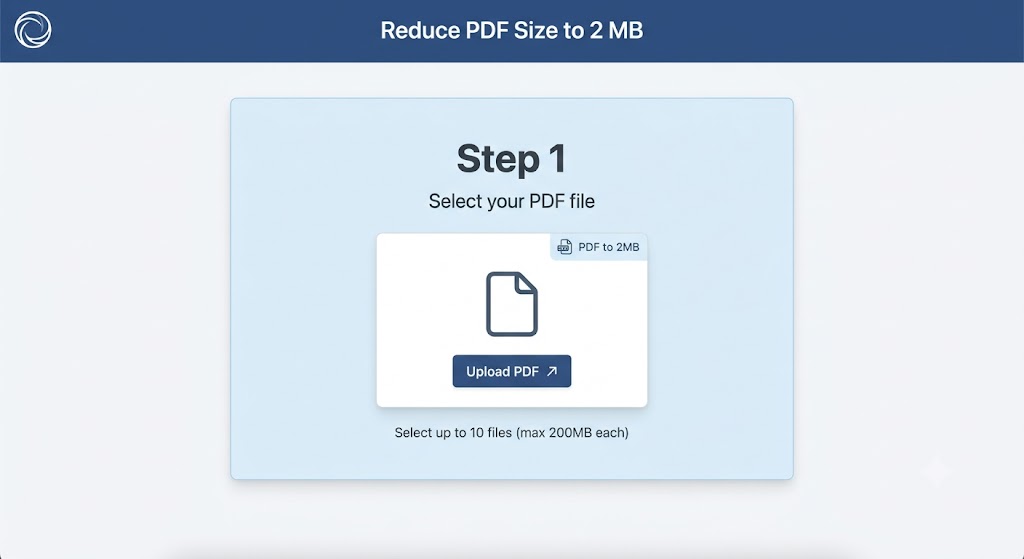
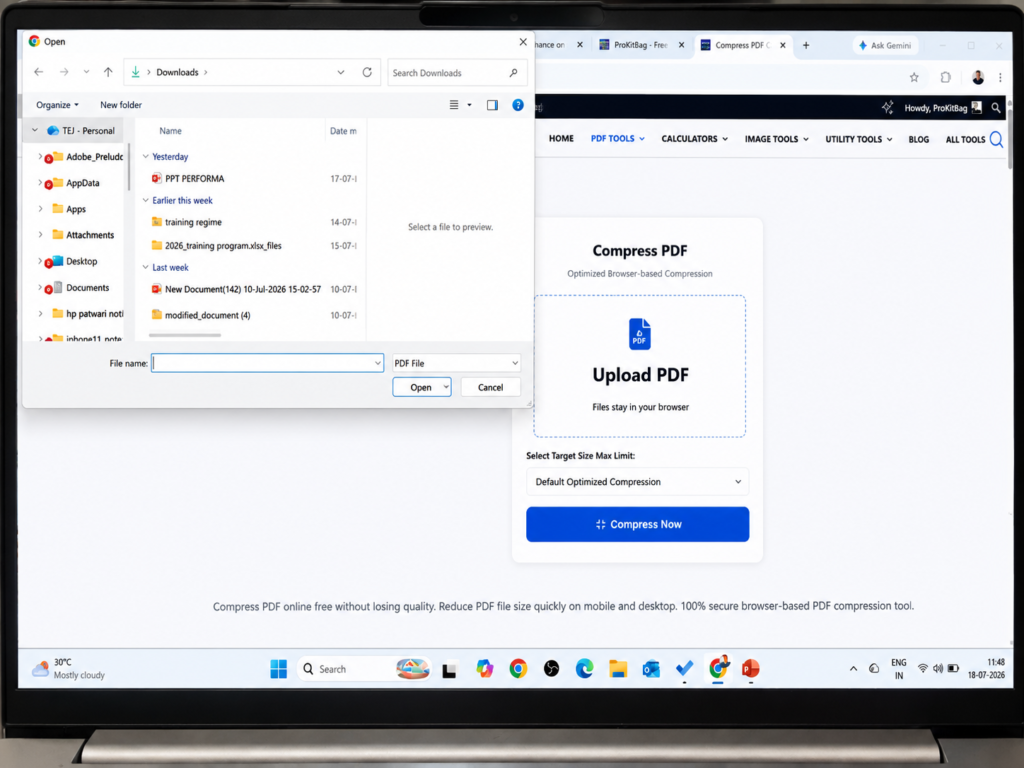
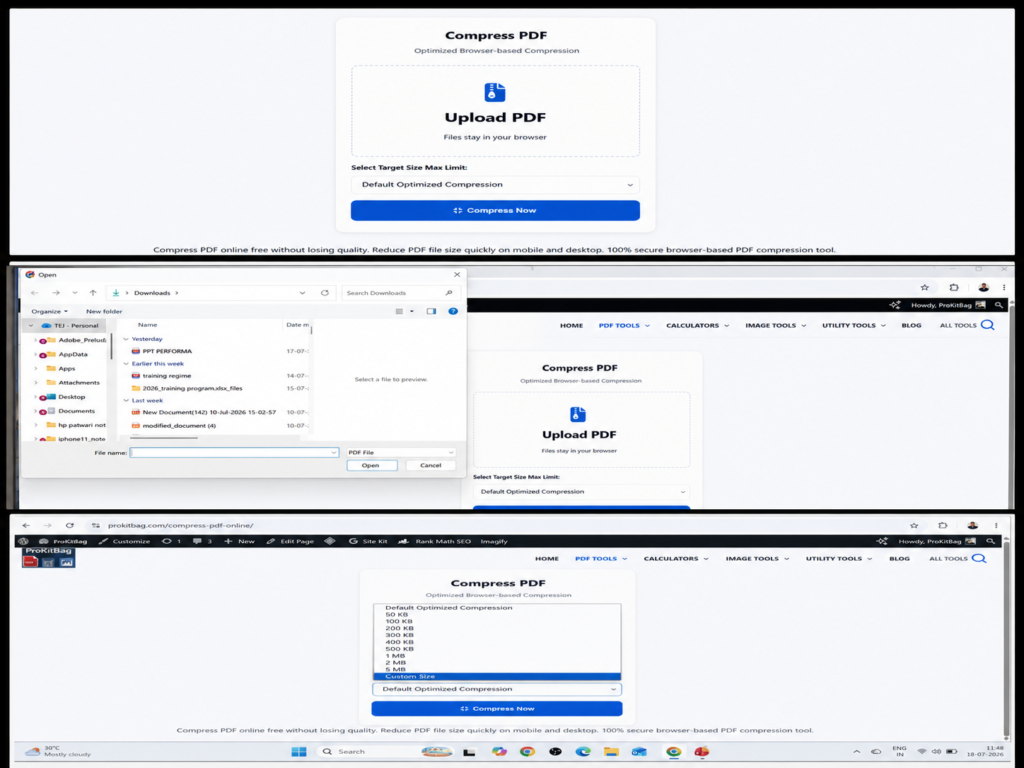
Step 1
Open the Compress PDF Tool on ProKitBag.com.
Step 2
Click Upload PDF.
Step 3
Select the PDF file from your device.
Step 4
The compression tool analyzes the document and optimizes:
- Images
- Fonts
- Internal document structure
Step 5
Wait for the compression process to finish.
Step 6
Download the optimized PDF.
Verify that the file size is 2 MB or smaller before uploading it to the destination website.
Benefits of Reducing PDF Size to 2 MB
Compressing PDFs provides several advantages:
- Faster uploads
- Easier email sharing
- Reduced cloud storage usage
- Better compatibility with online forms
- Improved document management
- Faster downloads
- Lower data usage
- Easier mobile sharing
Benefits of Reducing PDF Size to 2 MB
Compressing PDFs provides several advantages:
- Faster uploads
- Easier email sharing
- Reduced cloud storage usage
- Better compatibility with online forms
- Improved document management
- Faster downloads
- Lower data usage
- Easier mobile sharing
Best Practices Before Compression
Start with the Original PDF
Compressing an already compressed PDF often provides limited improvement.
Whenever possible, use the original document.
Remove Unnecessary Pages
Delete blank pages or duplicate pages before compression.
Smaller documents naturally produce smaller file sizes.
Optimize Images
If the PDF contains large photographs, resize them before creating the PDF.
This often reduces file size more effectively than compression alone.
Avoid Multiple Compression Cycles
Repeated compression may gradually reduce image quality.
Compress only once using an efficient PDF compressor.
Verify the Final Document
Before submitting your PDF:
Check the final file size.
Open every page.
Confirm text is readable.
Ensure images remain clear.
Common Mistakes to Avoid
Compressing an Already Tiny PDF
If the PDF is already below 2 MB, additional compression is unnecessary and may reduce quality.
Using Maximum Compression
Very aggressive compression can make scanned documents blurry and difficult to read.
Choose a balanced compression level whenever available.
Ignoring Upload Requirements
Some websites require:
- Maximum file size
- Specific PDF version
- Certain page orientation
Always review the portal’s requirements before uploading.
Forgetting to Check the Output
- Never assume the compressed PDF is ready.
- Always review:
- Overall formatting
- File size
- Page order
- Text clarity
- Images
Who Can Benefit from PDF Compression?
Reducing PDFs to 2 MB is useful for:
- Students
- Teachers
- Government employees
- Job seekers
- Lawyers
- Accountants
- Doctors
- Business professionals
- Researchers
- Freelancers
Anyone who regularly uploads documents online can benefit from reducing PDF file size.
Why Use ProKitBag’s Compress PDF Tool?
- ProKitBag’s Compress PDF Tool offers a simple way to optimize PDF files while maintaining document quality.
- Key features include:
- Works on Windows, macOS, Android, and iPhone
- Browser-based processing
- No software installation
- Mobile-friendly interface
- Fast compression
- Easy-to-use design
- Secure file handling
- Free access
Advanced PDF Optimization Techniques
While standard online compression tools handle the heavy lifting, understanding advanced optimization methods can help you achieve the perfect balance between crisp quality and a tiny file size.
1. Vectorizing Fonts vs. Embedding
When a PDF is created, fonts are often embedded to ensure they look identical on every screen. However, fully embedded fonts add significant bulk.
- The Fix: Modern optimization tools subset fonts—meaning they only embed the exact characters used in the document rather than the entire alphabet and symbol set.
2. Downsampling and Bicubic Interpolation
Images are the main culprit behind massive PDF files. Advanced compressors use bicubic interpolation to reduce the number of pixels in an image (downsampling) while blending surrounding pixel colors. This reduces the file size drastically without making the image look pixelated or blocky.
3. Removing Unused Objects and Metadata
Every time a PDF is edited, hidden data tracks changes, creator information, and old object structures. Stripping out this redundant metadata cleans up the internal code of the file, shaving off crucial kilobytes needed to slip under that strict 2 MB threshold.
PDF Compression Levels: At a Glance
Not all PDF compression is the same. Depending on your file’s purpose, use this table to determine which compression strategy fits best:
| Compression Level | Target Size Reduction | Image Quality | Best Used For |
| Low / Standard | 10% – 30% | Excellent (Lossless) | Legal contracts, official credentials, text-heavy PDFs |
| Medium / Balanced | 40% – 70% | Great (Slight Loss) | Job applications, university admissions, tax filings |
| High / Aggressive | 75% + | Low / Blurry | Personal archiving where readability is prioritized over aesthetics |
Troubleshooting: What to Do If Your PDF Won’t Shrink
Sometimes, you run a PDF through a compressor and it barely changes size, or it remains stubbornly above 2 MB. Here is how to fix it:
- The PDF is a “Scanned Image”: If your PDF is just a giant photo taken from a smartphone scanner app, standard compressors struggle. Use an OCR (Optical Character Recognition) tool first to turn the text into actual data, then compress it.
- The File is Secured or Password Protected: Secure PDFs lock out compression algorithms. You must remove the password security restriction before the tool can alter internal images or fonts.
- The Core Asset is Flawed: If a single graphic inside the PDF is a massive 20 MB uncompressed PNG, compress that specific image before saving or building your final document layout.
Frequently Asked Questions (FAQs)
How can I reduce a PDF to 2 MB without losing quality?
Use a balanced compressor like the one on ProKitBag. It selectively lowers image resolution to a standard web-friendly 150 DPI and strips hidden metadata without degrading text sharpness.
Why is my PDF still over 2 MB after compression?
Your file likely contains highly complex vector graphics or unoptimized scanned images. Try running the file through the tool a second time, or split the document into smaller multi-part uploads if the target portal allows it.
Is it safe to upload confidential documents to an online PDF compressor?
Yes, provided you use a secure tool. ProKitBag processes files strictly inside your browser window or via secure, encrypted protocols that permanently purge uploaded documents shortly after processing.
Can I compress a PDF to 2 MB on a Mac using built-in tools?
Yes. Mac users can open the document in the native Preview app, select File > Export, and choose the Reduce File Size option from the “Quartz Filter” dropdown menu.
What resolution is optimal for a 2 MB web PDF?
A resolution of 150 DPI (dots per inch) is the sweet spot for web uploads. It keeps text sharp enough for printing and viewing while keeping file sizes incredibly low.
Will reducing my PDF file size delete my text?
No. Compression only targets structure layout encoding, structural margins, and image data. Your actual text content remains entirely intact and searchable.
Can I compress multiple PDFs to under 2 MB at the same time?
Yes. Batch compression tools allow you to drop dozens of files at once, compressing each individual document down to meet your required size limit simultaneously.
Does Adobe Acrobat allow you to compress files under 2 MB?
Yes. When using “Save As” in Microsoft Word, select Minimum Size (publishing online) before saving. This optimizes your document properties right at creation.
How do I check if my PDF is successfully under 2 MB?
Right-click your file on Windows and select Properties, or press Cmd + I on a Mac to pull up the Get Info panel. Look at the exact size metrics listed.
Final Thoughts
Shrinking your files down to meet strict digital upload limits shouldn’t be a painful hurdle. By using an efficient tool, setting your target benchmarks early, and removing unnecessary metadata, your documents will pass automated portal checks on the first try.
Save yourself time and avoid submission deadlines anxiety—head over to the Compress PDF Tool on ProKitBag.com to optimize your documents safely and for free.
FAQ Schema (JSON-LD)
JSON
{
  "@context": "https://schema.org",
  "@type": "FAQPage",
  "mainEntity": [{
    "@type": "Question",
    "name": "How can I reduce a PDF to 2 MB without losing quality?",
    "acceptedAnswer": {
      "@type": "Answer",
      "text": "Use a balanced online compressor like ProKitBag. It downsizes hidden metadata and drops high-res images to a web-optimized 150 DPI while keeping text crisp."
    }
  },
  {
    "@type": "Question",
    "name": "Why is my PDF still over 2 MB after compression?",
    "acceptedAnswer": {
      "@type": "Answer",
      "text": "Your file likely features complex vector elements or heavy scanned pages. Try re-compressing it or using an OCR tool first to lower resource load."
    }
  }]
}
Article Schema (JSON-LD)
JSON
{
  "@context": "https://schema.org",
  "@type": "TechArticle",
  "headline": "How to Reduce PDF Size to 2 MB (Free Online Guide 2026)",
  "image": "https://prokitbag.com/blog/assets/reduce-pdf-2mb-guide.jpg",
  "author": {
    "@type": "Organization",
    "name": "ProKitBag Editorial Team"
  },
  "publisher": {
    "@type": "Organization",
    "name": "ProKitBag",
    "logo": {
      "@type": "ImageObject",
      "url": "https://prokitbag.com/logo.png"
    }
  },
  "datePublished": "2026-07-07",
  "inLanguage": "en-US"
}