
Introduction
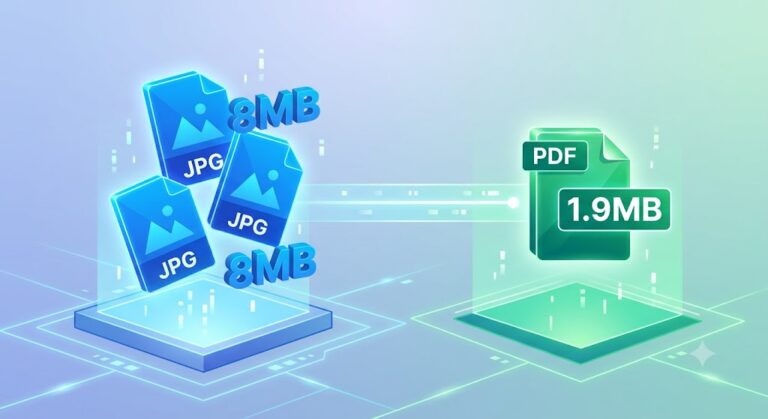
Many online application portals require documents to be uploaded as PDF files with a maximum size of 2 MB. Whether you’re applying for a government job, submitting university documents, completing banking verification, or uploading tax forms, meeting this file size requirement is essential.
If your documents are stored as images, you first need to convert them into a PDF while ensuring the final file remains below the required limit.
This guide explains how to convert images to PDF under 2 MB, including supported image formats, optimization techniques, and practical tips to create professional-looking PDFs without sacrificing readability.
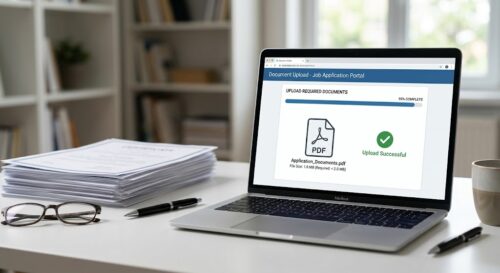
Table of Contents
What Is an Image to PDF Converter?
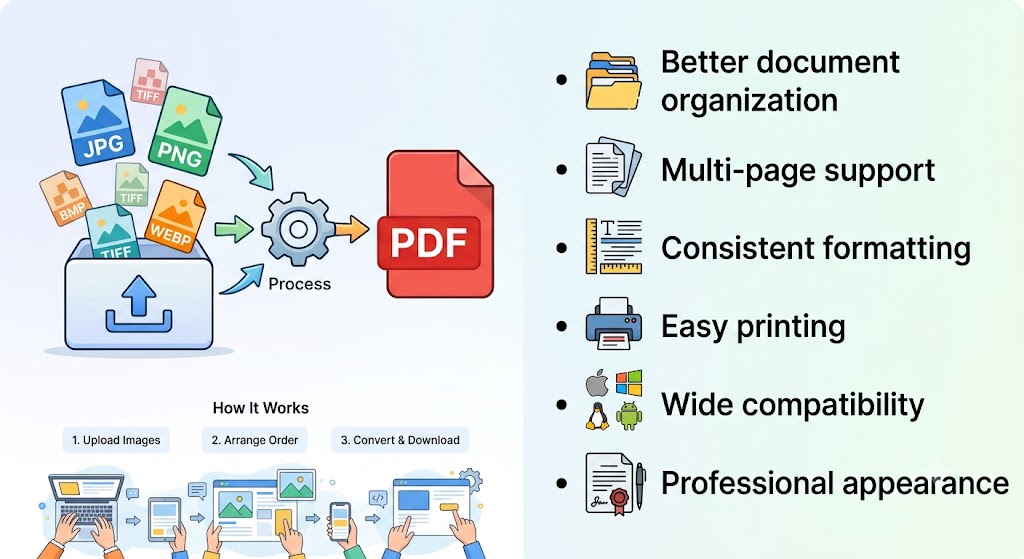
An Image to PDF converter is a tool that combines one or more image files into a PDF document.
Unlike individual image files, PDFs provide:
- Better document organization
- Multi-page support
- Consistent formatting
- Easy printing
- Wide compatibility
- Professional appearance
Most online converters support multiple image formats and allow you to arrange images before generating the final PDF.
Why Convert Images to PDF?
- Why Convert Images to PDF?
- Images are useful for viewing individual pages, but PDFs are generally preferred for official document submission because they are easier to share, print, and archive.
- Common reasons include:
- Legal records
- Government applications
- Job applications
- College admissions
- Scholarship forms
- Passport applications
- Banking documents
- Insurance claims
- Medical reports
- Business documentation
Why Keep the PDF Under 2 MB?
Many online portals limit the maximum upload size.
Keeping your PDF below 2 MB provides several benefits:
- Faster uploads
- Reduced upload failures
- Smaller email attachments
- Better compatibility with online forms
- Easier cloud storage
- Quicker downloads
- Compliance with portal requirements
Supported Image Formats
Most Image to PDF tools support popular image formats, including:
- JPG
- JPEG
- PNG
- WEBP
- BMP
- GIF
- TIFF
These formats can usually be combined into a single multi-page PDF.
How to Convert Images to PDF Under 2 MB
Step 1
Open the Image to PDF Tool on ProKitBag.com.
Step 2
Click Upload Images.
Step 3
Select one or more images from your computer or mobile device.
Supported formats include:
- JPG
- JPEG
- PNG
- WEBP
- BMP
- TIFF
Step 4
Arrange the images in the correct order.
If you’re creating a document with multiple pages, ensure the sequence matches the original document.
Step 5
Click Convert to PDF.
The tool combines the selected images into a single PDF document.
Step 6
Review the PDF size.
If the file is already below 2 MB, download it.
If it’s larger than 2 MB, use the Compress PDF Tool to reduce the size while maintaining readability.
Benefits of Converting Images to PDF
Converting images into PDF format offers several advantages:
- Multiple images become one organized document.
- Easier sharing through email.
- Better compatibility with government and educational websites.
- Improved printing quality.
- Professional presentation.
- Simplified document storage.
- Faster file management.
Best Practices Before Conversion
Use Clear Images
Blurry or low-quality images will remain blurry after conversion.
Use properly scanned or high-quality photographs.
Crop Unnecessary Areas
Remove blank borders and unwanted backgrounds before converting.
This improves readability and reduces file size.
Arrange Images Properly
Review the page order before conversion.
Correct sequencing prevents confusion later.
Remove Duplicate Images
Duplicate pages unnecessarily increase the PDF size.
Double-check your image selection before uploading.
Resize Oversized Images
Very large smartphone images often exceed what’s needed for document submission.
Resizing them before conversion helps produce smaller PDF files.
Common Mistakes to Avoid
Uploading Very High-Resolution Photos
Large images create unnecessarily large PDFs.
Ignoring File Size
Always verify the final PDF size before uploading it to an online portal.
Mixing Unrelated Documents
Keep each PDF focused on a single application or project.
Using Screenshots Instead of Proper Scans
Scanned documents are usually clearer and more professional than screenshots.
Compressing Too Aggressively
Excessive compression can make text difficult to read.
Aim for a balance between file size and readability.
Who Can Use an Image to PDF Converter?
This tool is suitable for:
- Students
- Teachers
- Government employees
- Job seekers
- Lawyers
- Accountants
- Doctors
- Business professionals
- Freelancers
- Anyone submitting documents online
Why Choose ProKitBag’s Image to PDF Tool?
ProKitBag’s Image to PDF Tool is designed for speed, simplicity, and convenience.
Key features include:
- Supports multiple image formats.
- Works directly in your browser.
- No software installation required.
- Fast conversion process.
- Mobile-friendly interface.
- Easy image reordering.
- Secure file processing.
- Free to use.
Advanced Optimization Techniques
Creating a PDF under 2 MB is not just about converting images—it also involves optimizing the source files before conversion. These techniques can help you produce smaller PDFs while maintaining excellent readability.
1. Choose the Right Image Resolution
Higher resolution images produce larger PDF files.
Recommended resolutions:
| Document Type | Recommended Resolution |
|---|---|
| Text Documents | 150 DPI |
| Certificates | 200 DPI |
| ID Cards | 200 DPI |
| Photographs | 200–300 DPI |
| Scanned Forms | 150–200 DPI |
Using an appropriate resolution keeps your PDF clear without creating unnecessary file size.
2. Resize Images Before Uploading
Modern smartphones often capture images with resolutions exceeding 4000 × 3000 pixels. Such dimensions are rarely necessary for document submissions.
Resize oversized images while ensuring all text remains readable.
3. Crop Unnecessary Backgrounds
Remove blank margins, table edges, or irrelevant areas before converting your images.
Benefits include:
- Smaller PDF size
- Cleaner appearance
- Faster uploads
- Better readability
4. Organize Pages Before Conversion
Arrange your images in the correct order before creating the PDF.
This avoids confusion and eliminates the need to recreate the document later.
5. Compress the PDF If Needed
If your converted PDF still exceeds 2 MB, use a PDF compression tool to reduce its size while preserving text clarity and document structure.
Image Format Comparison
Choosing the right image format can affect the final PDF size.
| Format | Typical File Size | Best For | Recommended |
|---|---|---|---|
| JPG | Small | Photos, scanned documents | ✅ Yes |
| JPEG | Small | General documents | ✅ Yes |
| PNG | Larger | Graphics, screenshots | ✔ Sometimes |
| WEBP | Very Small | Modern web images | ✅ Yes |
| BMP | Very Large | Raw images | ❌ Not recommended |
| TIFF | Large | Professional scanning | ✔ Only when required |
| GIF | Small | Simple graphics | ✔ Limited use |
For most scanned documents and forms, JPG or WEBP provides the best balance between quality and file size.
Common Problems and Solutions
Problem: PDF Is Larger Than 2 MB
Possible causes:
- High-resolution images
- Too many pages
- Large image dimensions
Solution:
- Resize the images.
- Remove unnecessary pages.
- Compress the PDF after conversion.
Problem: Images Appear Blurry
Cause:
The original images were low quality or heavily compressed before conversion.
Solution:
Start with clear, well-lit scans or photos and avoid excessive compression.
Problem: Pages Are in the Wrong Order
Cause:
Images were uploaded without arranging them.
Solution:
Use the drag-and-drop feature to reorder images before converting them into a PDF.
Problem: Upload Fails
Possible reasons:
- Weak internet connection
- Unsupported browser
- Temporary upload issue
Solution:
Refresh the page, ensure a stable internet connection, and try again using a modern browser.
Problem: PDF Is Rejected by the Website
Check that:
- The file size is below 2 MB.
- The PDF is not password-protected.
- All pages are readable.
- The required document format is used.
Related Articles
How to Merge 50 PDF Files Online at Once (Free & Fast Guide 2026)
JPG to PDF 2MB Converter – Convert & Compress Free Online
Compress PDF to 200KB Without Losing Quality (2026 Guide)
Tips for Better Results
Follow these best practices for professional PDFs:
- Use scanned documents instead of screenshots.
- Capture images in good lighting.
- Keep the camera steady.
- Avoid shadows on documents.
- Remove duplicate images.
- Review every page before downloading.
- Verify the final PDF size before uploading.
Frequently Asked Questions
1. How do I convert images to PDF under 2 MB?
Upload your images to an Image-to-PDF converter, create the PDF, and compress it if necessary until the file size is below 2 MB.
2. Which image formats are supported?
Most converters support:
JPG
JPEG
PNG
WEBP
BMP
TIFF
GIF
3. Can I combine multiple images into one PDF?
Yes. Most Image-to-PDF tools allow you to merge multiple images into a single multi-page PDF.
4. Why is my PDF larger than 2 MB?
Large images, high scan resolutions, and multiple pages increase the final PDF size.
5. Can I convert images to PDF on my phone?
Yes. Browser-based converters work on Android and iPhone without requiring software installation.
6. Will converting images to PDF reduce quality?
No. Image-to-PDF conversion generally preserves the original image quality. Quality changes usually occur only if additional compression is applied.
7. Is it safe to convert images to PDF online?
Choose a trusted service that uses secure HTTPS connections and removes uploaded files after processing.
8. Which image format is best for creating a PDF?
For scanned documents and photographs, JPG or WEBP usually provides the best balance between quality and file size.
9. Can I rearrange pages before conversion?
Yes. Most converters allow you to drag and drop images into the desired order before creating the PDF.
10. What should I do if my PDF still exceeds 2 MB?
Resize the images, remove unnecessary pages, or compress the PDF using a PDF compression tool.
Final Thoughts
Converting images into a PDF under 2 MB is a simple process when you prepare your files correctly. By choosing the appropriate image format, optimizing image size, arranging pages properly, and compressing the PDF only when necessary, you can create documents that meet the upload requirements of universities, employers, government agencies, and other online platforms.
Whether you’re submitting application forms, certificates, ID documents, or business records, using a reliable browser-based Image-to-PDF converter helps you create professional documents quickly and efficiently.
With ProKitBag’s Image to PDF Tool and Compress PDF Tool, you can complete the entire workflow—from image conversion to file-size optimization—without installing any software.