
How to Merge 50 PDF Files Online at Once (Free & Fast Guide)
Table of Contents
Can I merge 50 PDF files into one document?
Quick Answer: You can merge 50 PDF files online by uploading all your PDFs to ProKitBag’s Merge PDF Tool, arranging them in the correct order, clicking Merge PDF, and downloading the combined document. The process usually takes less than a minute.
Introduction
Managing dozens of PDF files can quickly become frustrating, especially when you need to send reports, invoices, assignments, legal documents, or scanned files as a single document. Fortunately, you don’t need expensive software to combine multiple PDFs.
In this guide, you’ll learn how to merge 50 PDF files online at once for free using a secure browser-based PDF merger. Whether you’re using Windows, Mac, Android, or iPhone, the process takes only a few minutes.
If you’re looking for a fast, secure, and easy solution, the merge 50 PDF files online on ProKitBag lets you combine multiple PDF files directly in your browser without installing any software.
Why Would You Need to Merge 50 PDF Files Online?
Many professionals and students need to combine large numbers of PDF files every day.
Common examples include:
- Monthly reports
- Office documents
- School assignments
- Business invoices
- Contracts
- Research papers
- Medical records
- Tax documents
- Scanned pages
- Project documentation
Instead of sending 50 separate PDFs, you can merge them into one organized document.
Best Way to Merge 50 PDF Files Online
The easiest solution is an online PDF merger.
Benefits include:
- No software installation
- Works on every device
- Completely online
- Fast processing
- Easy drag-and-drop interface
- Secure file handling
- Free to use
Step 1 Open the ProKitBag
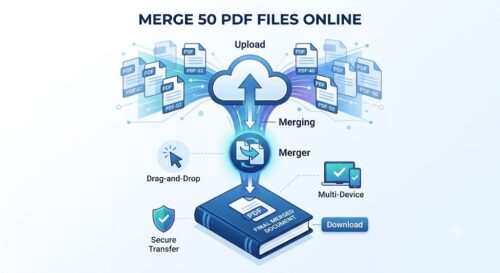
Open the ProKitBag Merge PDF Tool in your browser. Click Upload PDF Files to select multiple documents from your device.
Step 2 Upload PDF Files
Click the Upload PDF Files button to select the PDF documents you want to combine. You can also drag and drop your files directly into the upload area for a faster and more convenient experience.
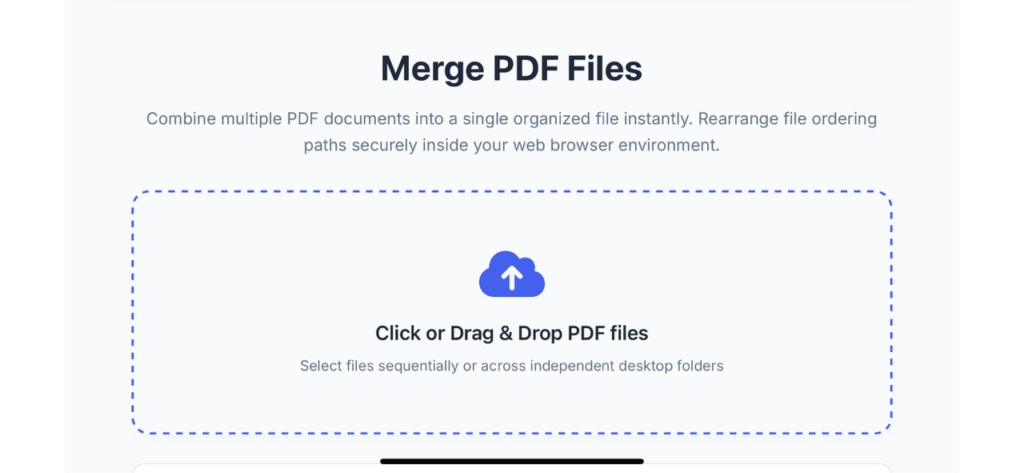
Step 3: Select All 50 PDF Files
Choose all 50 PDF files from your computer. To speed up the process, you can use Ctrl + A (Windows) or Cmd + A (Mac) to select all files in a folder, or use Shift + Click or your device’s multi-select option to choose multiple PDFs at once.
Step 4: Arrange the PDF Files in the Correct Order
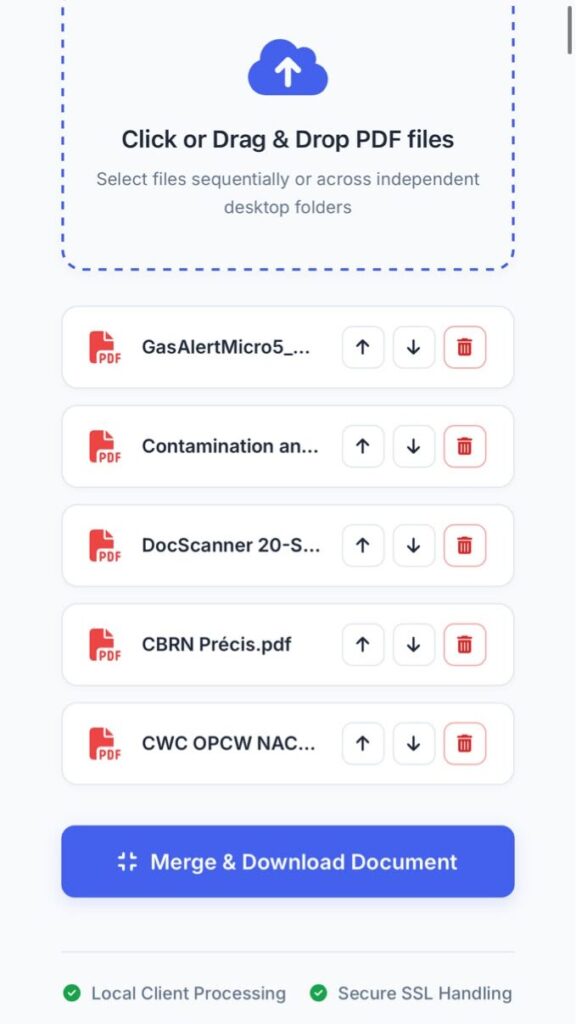
Rearrange your PDF files in the order you want them to appear in the final document. Most online PDF merger tools, including ProKitBag, support drag-and-drop sorting, making it easy to organize your files before merging them into a single PDF.
Step 5: Merge Your PDF Files
Click the Merge PDF button to combine all the selected documents into a single PDF file. The tool will process your files while preserving the original quality, layout, and formatting.
Step 6: Download the Merged PDF
Once the merging process is complete, click Download to save your combined PDF to your device. That’s it! The entire process usually takes less than a minute, depending on the number and size of your PDF files.
Can You Merge More Than 50 PDF Files Online?
Yes.
Many browser-based PDF merger tools support dozens of files.
The actual limit depends on:
- Browser memory
- Device performance
- File sizes
- Tool limitations
If your combined files are very large, mer
Tips Before Merging PDFs
Keep File Names Organized
Rename files like:
Report-01.pdf
Report-02.pdf
Report-03.pdf
This helps maintain the correct order.
Remove Duplicate Files
Double-check that you haven’t uploaded the same PDF twice.
Arrange Pages Carefully
Verify the sequence before merging to avoid redoing the process
Check File Quality
Ensure scanned PDFs are readable before combining them.
Online PDF Merger vs Desktop Software
| Online Tool | Desktop Software |
|---|---|
| No installation | Installation required |
| Free | Often paid |
| Works on mobile | Mostly desktop only |
| Instant | Takes longer |
| Browser-based | Software dependent |
Advantages of Merging PDF Files
Professional presentation
Easier file sharing
Better document organization
Faster emailing
Improved printing
Simplified archiving
Reduced document confusion
Common Issues While Merging PDFs
PDF Won’t Upload
Possible reasons:
- Corrupted file
- Unsupported browser
- Large file size
Solution:
Refresh the page or try another browser.
Files Merge in the Wrong Order
Always rearrange files before clicking Merge.
Large PDF Downloads Slowly
Large merged PDFs naturally take longer to download. A stable internet connection helps.
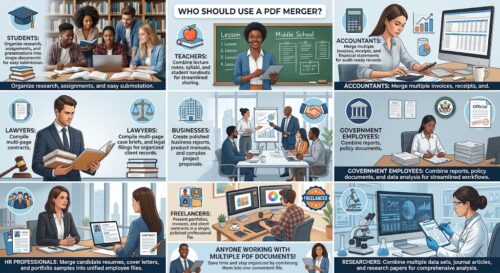
Who Should Use a PDF Merger?
A PDF merger is useful for:
- Students
- Teachers
- Accountants
- Lawyers
- Businesses
- Government employees
- HR professionals
- Freelancers
- Researchers
Anyone working with multiple PDF documents can save time by combining them into one file.
Frequently Asked Questions
Does merging reduce quality?
No, merging PDFs does not reduce quality. Combining multiple documents simply rearranges the existing pages into a single file. The original text, fonts, layout, and image resolutions remain exactly as they were in the source files.
Is it free to merge PDFs?
Yes, it is completely free. Many online tools, including the Merge PDF Tool on ProKitBag, allow you to combine multiple documents directly in your web browser without requiring a subscription, registration, or any hidden fees.
Can I merge PDFs on mobile?
Yes, you can easily merge PDFs on mobile devices. Because the tool is browser-based, you don’t need to download a specialized app. Just open your mobile browser (like Safari or Chrome) on your Android or iPhone, upload your files, and merge them on the go.
How to merge 50 PDF files at once?
You can merge them in just a few quick steps:
Open the online Merge PDF tool.
Click Upload PDF Files (or drag and drop them into the upload box).
Select all 50 files at once using Ctrl + A (Windows) or Cmd + A (Mac).
Arrange the files in your preferred sequence using the drag-and-drop feature.
Click Merge PDF and download your newly combined document.
Can I merge PDFs without software?
Yes, no software installation is required. Web-based tools process everything securely in the cloud or directly within your internet browser. This means you save storage space on your device and can complete the process instantly on Windows, Mac, or Linux without admin privileges.
Can I merge password-protected PDFs?
Generally, no—not without removing the protection first. Most online PDF merging tools cannot process encrypted or password-protected files for security reasons. To merge them, you will need to open the files using their passwords and save them as unprotected PDFs (or use a PDF unlocker tool) before uploading them to the merger.
Can I merge 50 PDF files online on my phone?
Yes, absolutely! Because the tool is entirely web-based, you don’t need a desktop computer or any special apps. You can open your mobile browser (like Safari on iPhone or Chrome on Android), navigate to the tool, upload all 50 files from your phone’s file manager, and merge them on the go.
Is it safe to merge 50 PDF files online?
Yes, provided you use a secure platform. Reliable tools use secure SSL encryption to protect your data during transmission. Furthermore, trusted platforms process files directly within your browser or automatically delete uploaded files from their cloud servers shortly after processing to ensure your privacy and data security.
What if I have more than 100 PDF files?
If you have a massive batch of files, it is best to merge them in smaller groups first. For example, you can merge them in two separate batches of 50, download those two combined files, and then merge those two final documents into one. This prevents browser crashes and ensures smooth processing, as handling over 100 files at once can hit browser memory limits.
Final Thoughts
Merging 50 PDF files in online to one document doesn’t have to be difficult. With a reliable online PDF merger, you can upload your files, arrange them in the correct order, and create a single organized PDF in just a few clicks.
Whether you’re preparing reports, submitting assignments, or organizing business records, combining PDFs saves time and makes document management much easier.
If you’re looking for a simple browser-based solution, try the Merge PDF Tool on ProKitBag to merge your PDF files quickly and efficiently.
About the Author: This guide was created by the ProKitBag editorial team, which specializes in online PDF tools, productivity software, and document management tutorials.