📄 Convert From PDF
Related Tools
Convert From PDF: Easily Convert PDF Files into Word, Excel, JPG, and PNG (Fast & Reliable 100% Free)
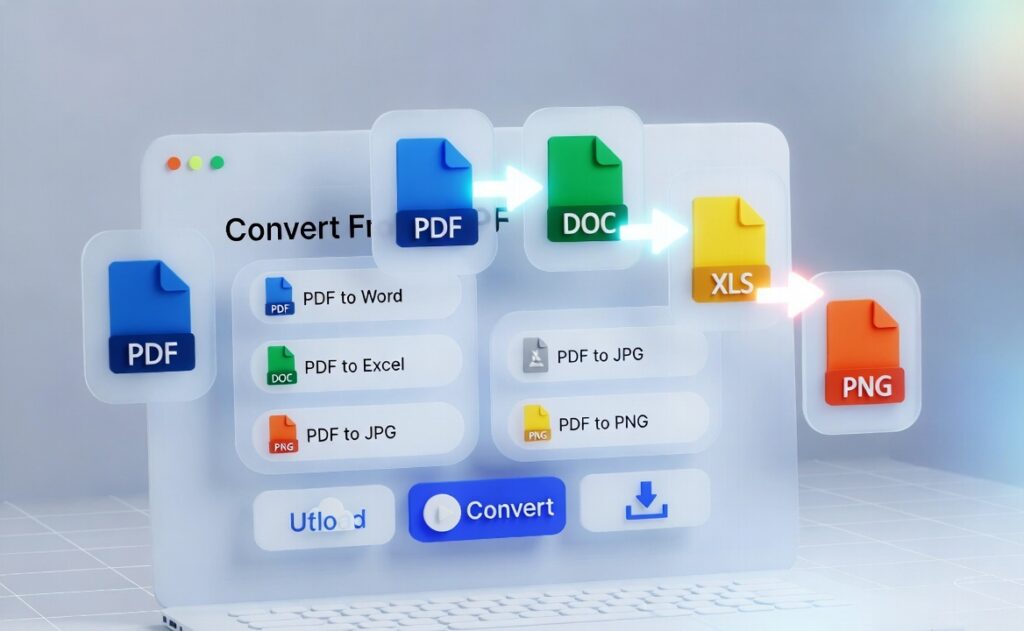
PDF files are everywhere. Whether you are a student submitting an assignment, a professional sharing official reports, or a content creator saving printable documents, the PDF format has become the most trusted and widely used file type across the internet.
But there is one major problem with PDFs: they are not always easy to edit, reuse, or extract content from.
That is why the demand for Convert From PDF tools has increased rapidly. People want to quickly convert PDF documents into editable formats like Word or Excel, or into image formats like JPG and PNG for easy sharing, uploading, or design use.
In this detailed guide, you will learn everything about converting PDF files, the best formats to choose, how to convert PDFs safely, and why using an online PDF converter is one of the smartest digital solutions today.
What Does “Convert From PDF” Mean?
“Convert From PDF” simply means transforming a PDF document into another file format. This can include:
The goal is to make the PDF file more usable based on your needs. For example:
- If you need editing, you convert PDF to Word.
- If you need data extraction, you convert PDF to Excel.
- If you want to share it as an image, you convert PDF to JPG or PNG.
This conversion process is extremely helpful because PDFs are often “locked” in layout form, meaning they are designed to look good but not necessarily easy to modify.
Why People Need to Convert PDF Files
PDF is one of the most secure and professional formats for document sharing. However, many users face common issues such as:
- Unable to edit PDF text
- Difficulty copying content from a PDF
- Large PDF size for uploading
- Need to extract tables and data
- Need to create images from PDF pages
- Need to reuse content for websites or social media
Converting PDFs solves all these problems.
Example Situations Where PDF Conversion is Useful
Students
- Convert PDF notes to Word for editing
- Convert PDF to JPG for sharing in WhatsApp groups
- Convert scanned PDF assignments into editable format
Professionals
- Convert PDF reports into Excel for analysis
- Convert PDF invoices into Word for updates
- Convert contracts into images for quick review
Content Creators
- Convert PDF ebooks into images for Pinterest
- Convert PDF guides into Word to repurpose blog content
- Convert PDF pages into PNG for Instagram carousels
Most Popular Formats to Convert From PDF
Let’s explore the most commonly used PDF conversion types and when you should use them.
1. Convert PDF to Word (DOC/DOCX)
PDF to Word conversion is one of the most popular and useful features.
Why Convert PDF to Word?
Word documents are editable and easy to format. Converting PDF to Word allows you to:
- Edit text and headings
- Modify paragraphs and fonts
- Copy content easily
- Add new sections or images
- Make corrections without rewriting everything
Best Use Cases
- Editing resumes
- Updating reports
- Modifying letters and applications
- Updating contracts
- Creating assignments from PDF notes
Who Benefits Most?
- Students
- Teachers
- Office employees
- HR professionals
- Freelancers
A high-quality PDF to Word converter keeps the original formatting intact, including fonts, tables, and alignment.
2. Convert PDF to Excel (XLS/XLSX)
PDF to Excel conversion is extremely helpful for extracting tables, invoices, and structured data.
Why Convert PDF to Excel?
Many PDF documents contain tables and numerical data, such as:
- Bank statements
- Reports
- Salary slips
- Business invoices
- Data sheets
When you convert PDF to Excel, you can:
- Calculate totals automatically
- Sort and filter data
- Create charts and graphs
- Analyze data professionally
- Export information to accounting software
Best Use Cases
- Converting invoices for accounting
- Converting expense sheets
- Extracting business reports
- Managing student marksheets
- Organizing survey results
This feature is especially useful for professionals working in finance, business, or administration.
3. Convert PDF to JPG
JPG is one of the most common image formats, widely supported by all devices and platforms.
Why Convert From PDF?
Sometimes you don’t need editing—you just need the PDF pages as images.
PDF to JPG conversion helps you:
- Share PDF pages easily on WhatsApp or social media
- Upload pages to websites
- Use pages as thumbnails
- Save single pages as pictures
- Reduce file complexity for quick viewing
Best Use Cases
- Sharing certificates
- Sending ID proof pages
- Uploading documents to online forms
- Creating preview images for ebooks
- Printing a specific page as an image
JPG files are smaller compared to PNG, which makes them faster to upload.
4. Convert PDF to PNG
PNG is a high-quality image format that supports transparency and sharper text.
Why Convert PDF to PNG?
If you want a clear and professional image output, PNG is the best choice.
PNG files are ideal for:
- High-resolution screenshots
- Logos and graphics
- Posters and design materials
- Website uploads requiring clarity
- Digital presentations
Best Use Cases
- Designers converting brochures into images
- Social media creators making Pinterest pins
- Converting PDFs for PowerPoint presentations
- High-quality prints
PNG is perfect when you want maximum image quality without losing sharpness.
Convert PDF on Mobile and Desktop (Easy and Fast)
One of the best things about online PDF conversion tools is that they work on:
✅ Android phones
✅ iPhones
✅ Windows computers
✅ MacBooks
✅ Tablets
✅ Chromebooks
You do not need to install any heavy software like Adobe Acrobat or Microsoft Office.
All you need is:
- A browser (Chrome, Safari, Firefox, etc.)
- Internet connection
- Your PDF file
This makes conversion extremely convenient for students and professionals who work on the go.
Key Features of a Good PDF Converter Tool
Not all PDF conversion tools are the same. A high-quality converter should offer:
1. Fast Conversion Speed
Time matters. A good tool converts files within seconds.
2. High-Quality Output
The formatting should remain accurate. Tables, fonts, and images should stay in place.
3. Multiple Format Support
A reliable converter should support:
- Word
- Excel
- JPG
- PNG
- Text
- PowerPoint
4. Mobile-Friendly Interface
Most users now work from smartphones. The converter must work smoothly on mobile.
5. Secure File Handling
Security is important. Your documents may contain personal or business data.
A trusted tool ensures that:
- Files are not stored permanently
- Files are deleted automatically after conversion
- Downloads are safe
6. No Software Installation
Online converters save device storage and reduce risk.
7. Works with Large PDFs
Many PDFs are large. A good tool should handle big files without crashing.
Step-by-Step Guide: How to Convert From PDF Online
Converting a PDF online is extremely simple.
Step 1: Upload Your PDF File
Select the PDF file from your phone or computer.
Step 2: Choose the Output Format
Pick what you want:
- PDF to Word
- PDF to Excel
- PDF to JPG
- PDF to PNG
Step 3: Click Convert
The tool will process your file automatically.
Step 4: Download the Converted File
Once conversion is complete, download the new file instantly.
This entire process usually takes less than 30 seconds.
Benefits of Converting PDF Files Online
Online PDF converters are popular because they provide many advantages.
1. Saves Time
No need to rewrite or manually copy content.
2. Increases Productivity
Professionals can reuse documents faster.
3. Perfect for Content Repurposing
Content creators can turn PDF pages into images, blog posts, and social media posts.
4. Better Accessibility
Not everyone has Adobe Acrobat Pro. Online converters are accessible to everyone.
5. No Technical Skills Needed
Even beginners can convert files in one click.
Best Uses of Convert From PDF Tool for Students
Students often work with PDF notes, ebooks, and assignments. A PDF converter can help in multiple ways.
Convert Notes into Word
If your teacher provides notes in PDF, you can convert them into Word and:
- Add highlights
- Edit and add extra points
- Make your own study material
Convert Study Material into Images
PDF to JPG/PNG is useful for:
- Sharing study pages in WhatsApp groups
- Uploading important notes on Instagram
- Creating revision slides
Convert PDFs into Excel for Calculations
For science and math students, PDF to Excel can help manage tables and data.
Best Uses for Professionals
Office workers and professionals use PDF conversion for business tasks.
Convert Reports into Editable Word Documents
Many reports come in PDF. Converting them into Word helps update:
- Company policies
- Presentations
- Project reports
Convert Financial Statements into Excel
PDF invoices and statements become easy to calculate once converted.
Convert Documents into Images for Presentations
Sometimes you need PDF pages in image form to add to PowerPoint slides.
Best Uses for Content Creators and Bloggers
Content creators use PDF conversion in powerful ways.
Create Pinterest Pins from PDF Pages
Convert PDF pages into JPG/PNG and use them for Pinterest marketing.
Repurpose PDF Guides into Blog Posts
Convert PDF to Word and rewrite or optimize content for SEO.
Create Instagram Carousel Posts
Convert PDF pages into PNG and post them as slide-style content.
Create YouTube Thumbnails
Use converted JPG images as thumbnails or background elements.
Common Problems During PDF Conversion (And Solutions)
Even though PDF conversion is easy, sometimes users face issues.
Problem 1: Formatting Changes After Conversion
Solution: Use a high-quality converter that supports layout retention.
Problem 2: PDF Contains Scanned Images
If the PDF is scanned, the text may not convert properly.
Solution: Use OCR-based converters (Optical Character Recognition).
Problem 3: Large File Takes Too Long
Solution: Compress the PDF first or use a fast tool optimized for large documents.
Problem 4: Password-Protected PDF
Solution: Remove password protection (if you have access) before converting.
Is Online PDF Conversion Safe?
Yes, online PDF conversion can be safe if you use a trusted platform.
A secure tool should offer:
- HTTPS encryption
- Automatic file deletion
- No permanent storage
- No file sharing with third parties
Always avoid suspicious websites that ask for unnecessary permissions or payments without showing clear features.
If your file contains sensitive data like:
- bank details
- identity documents
- confidential business contracts
Then use a secure and reputable converter tool.
Tips to Get the Best Results When Converting PDF Files
To ensure high-quality output, follow these tips:
Use Clear PDFs
If the PDF is blurry or scanned poorly, conversion results will be weak.
Convert to the Right Format
- Use Word for editing text
- Use Excel for tables and data
- Use JPG for sharing
- Use PNG for high-quality images
Check Output File After Downloading
Always verify formatting, missing lines, or broken tables.
Use OCR When Needed
For scanned PDFs, OCR helps extract editable text.
Convert From PDF Tool: Perfect for Mobile Users
Today, many users do not have laptops. They rely only on mobile phones.
A mobile-friendly PDF converter is very useful because:
- You can convert documents anytime
- No need for computer software
- Easy to upload from WhatsApp, Gmail, or Google Drive
- Works quickly even on low-end devices
This is a major reason why online conversion tools are becoming more popular than traditional software.
Why Online PDF Converters Are Better Than Offline Software
Offline software like Adobe Acrobat Pro is powerful, but it has disadvantages:
- Expensive subscription
- Requires installation
- Heavy system requirements
- Not convenient for mobile users
- May require technical knowledge
Online PDF converters solve these issues by offering:
- Free or low-cost usage
- No installation
- Fast conversion
- Works anywhere
- Beginner-friendly interface
For most users, online conversion is the best choice.
Convert From PDF: A Must-Have Tool in 2026
With increasing digital paperwork, PDFs are being used more than ever.
People now regularly deal with:
- Online forms
- Government documents
- E-learning materials
- Digital certificates
- Business contracts
That is why a reliable “Convert From PDF” tool has become essential for:
- Students
- Office employees
- Freelancers
- Creators
- Small business owners
Instead of wasting hours rewriting documents, conversion tools help you complete tasks in seconds.
Frequently Asked Questions (FAQ)
Is PDF to Word conversion free?
Many tools offer free conversion, especially for small files.
Can I convert PDF to Excel accurately?
Yes, especially if the PDF has clear tables. For scanned PDFs, OCR may be needed.
Which is better: PDF to JPG or PDF to PNG?
- JPG is best for smaller size and quick sharing.
- PNG is best for high-quality text and graphics.
Can I convert PDF files on mobile?
Yes. Most online converters work perfectly on mobile browsers.
Will my PDF file remain secure?
If the converter tool uses encryption and auto-delete, your file stays safe.
Final Thoughts: Convert From PDF Easily and Save Time
PDF files are excellent for sharing documents, but they are not always flexible. That’s why converting PDFs into editable or image formats has become a daily need.
Whether you want to convert a PDF into:
- Word for editing
- Excel for calculations
- JPG for quick sharing
- PNG for high-quality design
a good Convert From PDF tool makes everything fast, simple, and reliable.
It works smoothly on both mobile and desktop, making it ideal for modern users who need instant results without downloading any software.