PDF to Word
7 Powerful Ways to Convert PDF to Word Without Losing Formatting|Free Online
7 Powerful Ways to Convert PDF to Word Without Losing Formatting
Converting a PDF into an editable Word document can be frustrating—especially when formatting breaks, fonts change, or images shift. If you want to convert PDF to Word without losing formatting, this guide will show you the safest and fastest methods.
Whether you’re using mobile, Windows, Mac, or any operating system, online PDF conversion makes the process simple and secure.
⸻
1️⃣ Use a Reliable Online PDF to Word Tool
The easiest method is using a trusted online converter. A high-quality tool preserves:
• Text alignment
• Fonts and styles
• Images and tables
• Page layout
Most modern tools allow quick PDF conversion without signup, so you can upload and download instantly.
2️⃣ Convert PDF to Word Online for Free
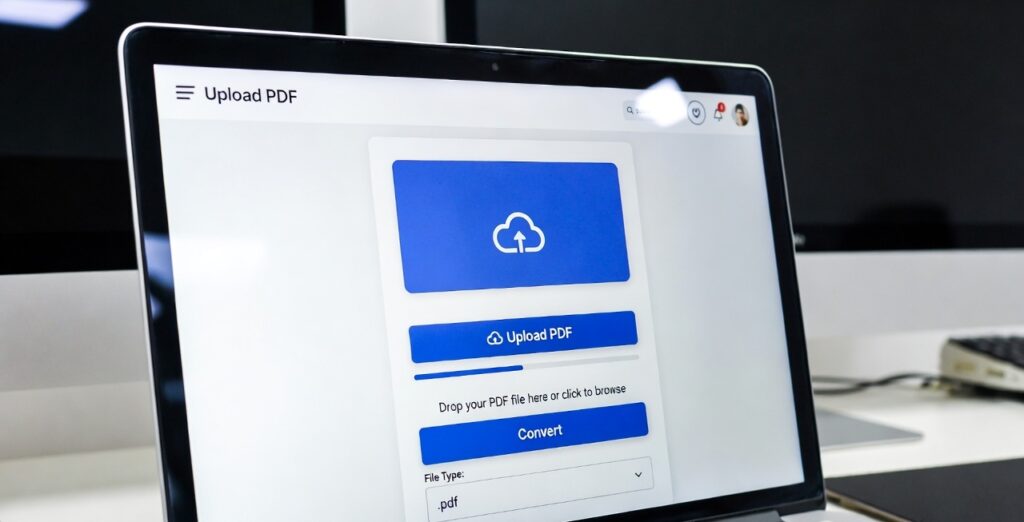
If you’re wondering how to convert PDF to Word online for free, follow these simple steps:
1. Open the PDF to Word converter tool
2. Upload your PDF file
3. Click Convert
4. Download the editable DOC file
No installation needed. No account required.
This makes it perfect for students, professionals, and quick office work.
⸻
3️⃣ Quick PDF Conversion Without Sign Up
Many users don’t want to create accounts. The best converters offer:
• Instant upload
• Automatic processing
• Direct download
• No watermark
This ensures PDF to Word for free conversion without sign up in just seconds.
⸻
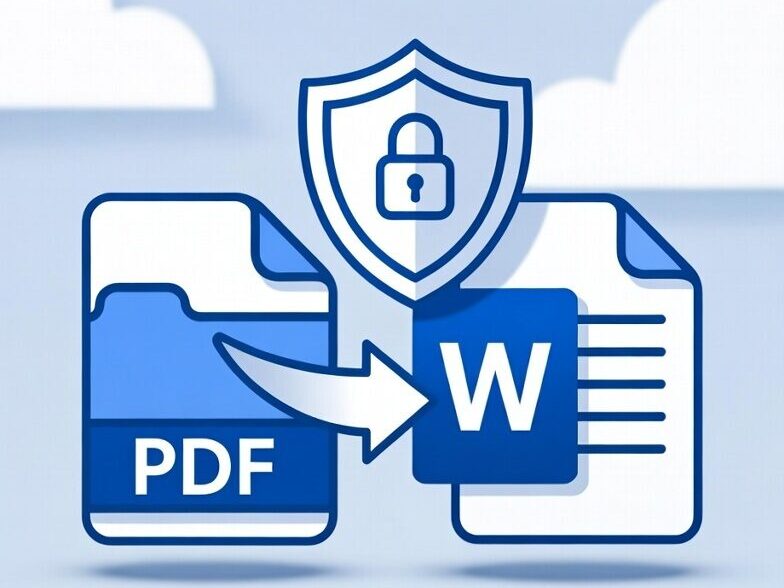
4️⃣ Safe Document Processing
Security is very important when uploading documents online. A good PDF converter provides:
• Secure file encryption
• Auto file deletion after processing
• No data storage
Safe document processing ensures your private PDFs remain confidential during conversion.
⸻
5️⃣ Convert PDF to Word on Any Operating System
One big advantage of online PDF conversion is compatibility. You can convert files on:
• Windows
• macOS
• Linux
• Android
• iPhone
Because everything runs in the browser, you don’t need special software. This makes online PDF conversion without losing quality extremely convenient.
⸻
6️⃣ Scanned PDF to DOC with OCR
If your file is scanned (image-based PDF), normal converters may not work properly. You need OCR (Optical Character Recognition).
OCR technology:
• Detects text inside images
• Converts scanned PDF to editable DOC
• Maintains paragraph structure
This is especially useful for old documents, printed notes, or government files.
⸻
⸻
7️⃣ Maintain Quality During Conversion
To avoid formatting issues:
• Use high-resolution PDFs
• Avoid corrupted files
• Choose a formatting-preserving converter
• Enable OCR for scanned documents
When done correctly, you can achieve online PDF conversion without losing formatting or quality.
⸻
How to Convert PDF to Word – Quick Summary
✔ Upload your PDF
✔ Click convert
✔ Download editable DOC
✔ No signup required
✔ Works on any device
✔ Supports scanned PDF with OCR
⸻
Related Tools
You can also try:
• Excel to PDF
• PDF to JPG Tool
• Merge PDF
• Compress PDF
• Word to PDF Converter
These tools help manage documents efficiently and improve productivity.